
Code Import
Import external code files in your Obsidian notes using @import syntax. Compatible with Markdown Preview Enhanced.
What is Code Import?
Code Import is a free, open-source plugin for Obsidian that lets you embed external source code files directly into your markdown notes. Using the @import directive, you can reference any file in your vault and render it with automatic syntax highlighting powered by Prism.js. Import entire files or select specific line ranges with line_begin and line_end parameters — including negative indices to exclude lines from the end. The syntax is fully compatible with Markdown Preview Enhanced, so your notes work seamlessly across tools. Whether you are writing technical documentation, maintaining a programming journal, or building a knowledge base with live code references, Code Import keeps your notes in sync with your source files without copy-pasting.
See it in action
Import code files directly into your notes with automatic syntax highlighting.
▶ examples/user.go
 1package main
 2
 3import (
 4    "fmt"
 5    "time"
 6)
 7
 8// User represents a user in the system
 9type User struct {
10    ID        int
11    Name      string
12    Email     string
13    CreatedAt time.Time
14}
15
16// NewUser creates a new user with the given name and email
17func NewUser(name, email string) *User {
18    return &User{
19        ID:        generateID(),
20        Name:      name,
21        Email:     email,
22        CreatedAt: time.Now(),
23    }
24}
25
26// String returns a string representation of the user
27func (u *User) String() string {
28    return fmt.Sprintf("User{ID: %d, Name: %s, Email: %s}", u.ID, u.Name, u.Email)
29}
30
31func generateID() int {
32    return int(time.Now().UnixNano() % 10000)
33}
34
35func main() {
36    user := NewUser("Alice", "[email protected]")
37    fmt.Println(user)
38}# Full File Import
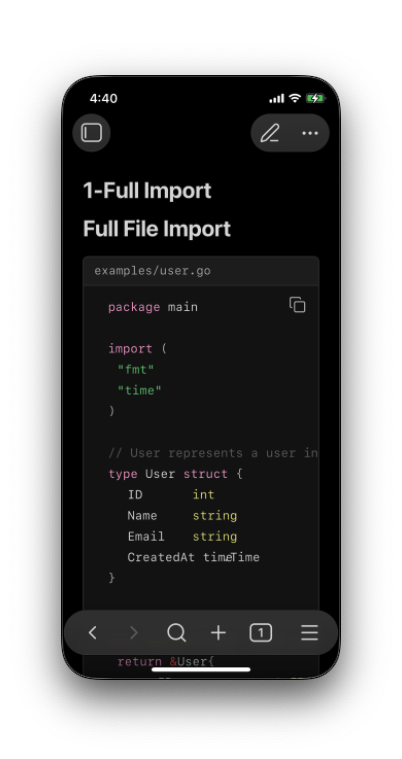
@import "examples/user.go"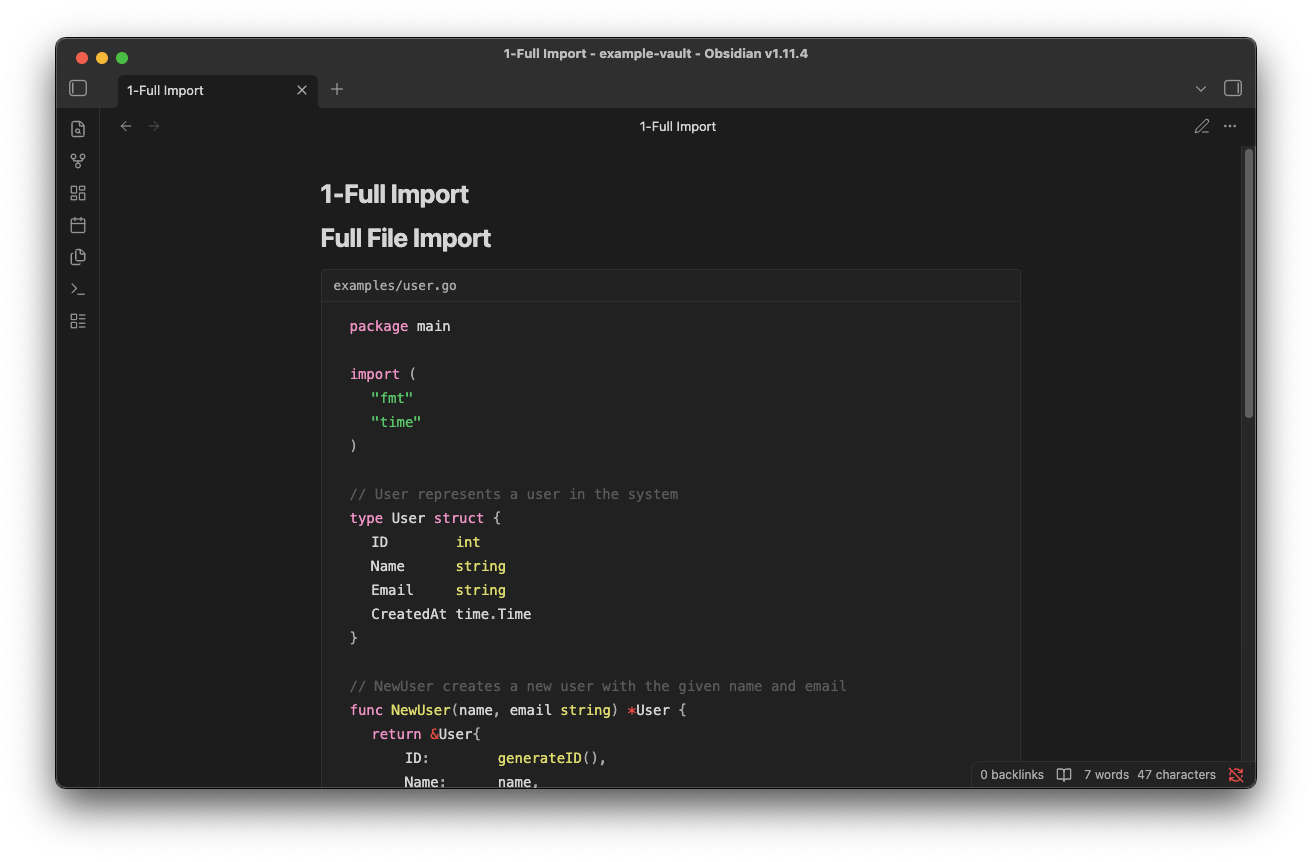
# Partial Import

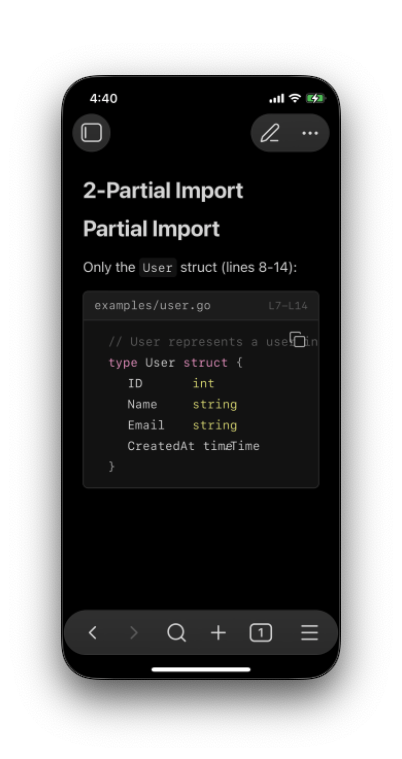
Only the `User` struct (lines 8-14):

@import "examples/user.go" {line_begin=7 line_end=14}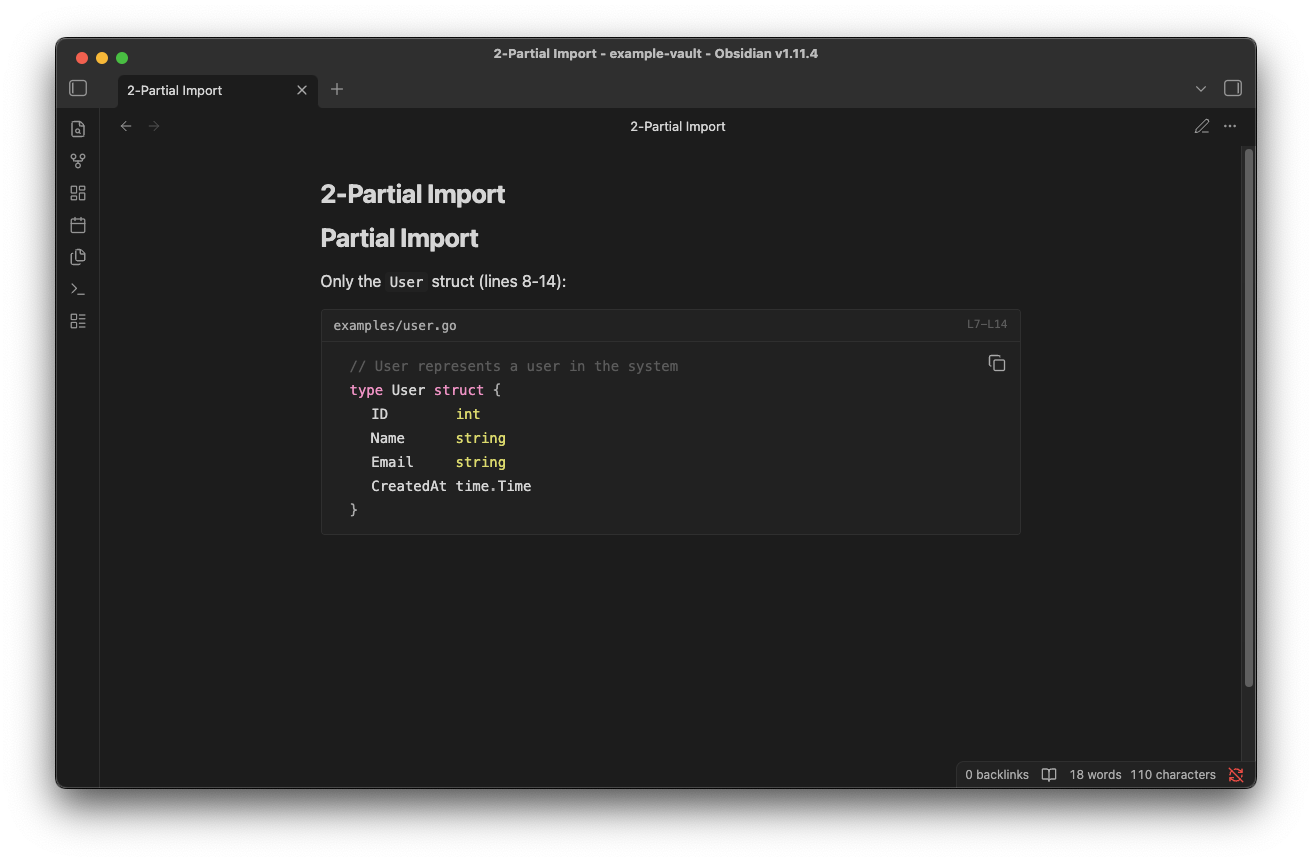
Simple @import Syntax
Use familiar MPE syntax to import code files with optional line ranges.
Full file
@import "path/to/file.go" Lines 5-14
@import "path/to/file.go" {line_begin=4 line_end=14} From line 11
@import "examples/main.py" {line_begin=10} Exclude last 4 lines
@import "config.yaml" {line_end=-4} Features
Everything you need to embed code in your documentation.
Import Code Files
Embed external code files directly in your Obsidian notes with syntax highlighting.
Line Range Selection
Import specific lines with line_begin and line_end parameters. Supports negative indices.
Syntax Highlighting
Automatic language detection based on file extension, using Obsidian's Prism.js.
Relative Paths
Reference files using relative paths, including parent directories with ../.